
For authors and approvers
Write from a template, and approve with every edit marked
Chronicle gives authors a template, a designer that saves as they go and a checklist before they submit, with the approval route shown in advance. Approvers get one inbox, see every change marked, and can edit the draft themselves. Everyone works on the SharePoint news site they already sign in to.
What changes for authors and approvers
Stories that go out right, without the email chase
Start from a template
Twelve templates and your team’s saved layouts, with sample text flagged until you replace it.
See the route first
Before you submit, Chronicle shows each approval step and who will take it.
Approve in one place
News waiting for you is under Approvals, with the changes marked and the author’s version a click away.
Edit, don’t email
Approvers can edit the draft themselves. The author sees every change and can accept it and publish.
An author’s view
Blocks on the left, a checklist on the right
Leo Fontaine writes for the Edmonton plant. In the designer he drags blocks onto the page and checks it at desktop and phone width. The right-hand pane shows what’s left before he publishes, and who will approve: the story is in Leo’s own series, so a site approver reviews it instead.
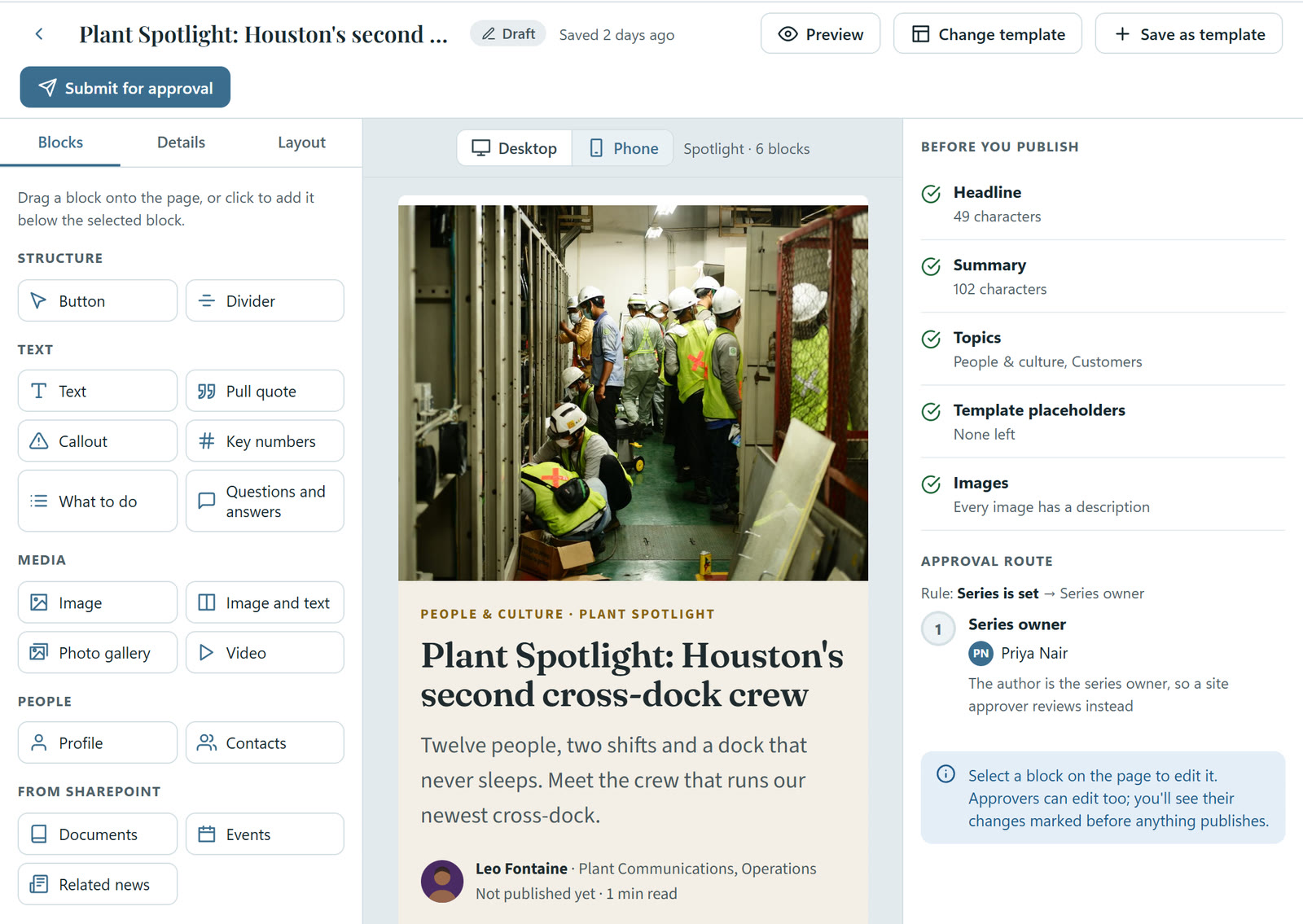
From the Chronicle demo, with sample data and stock photos.
For approvers
Every change marked, and one click to publish
Rachel Osei, the Benefits topic lead, made five edits to Marcus Chen’s benefits story and sent it back with a note. Marcus sees each change marked: added words in green, removed words struck through. If he accepts them unchanged, the story publishes straight away; any other change starts approval again.
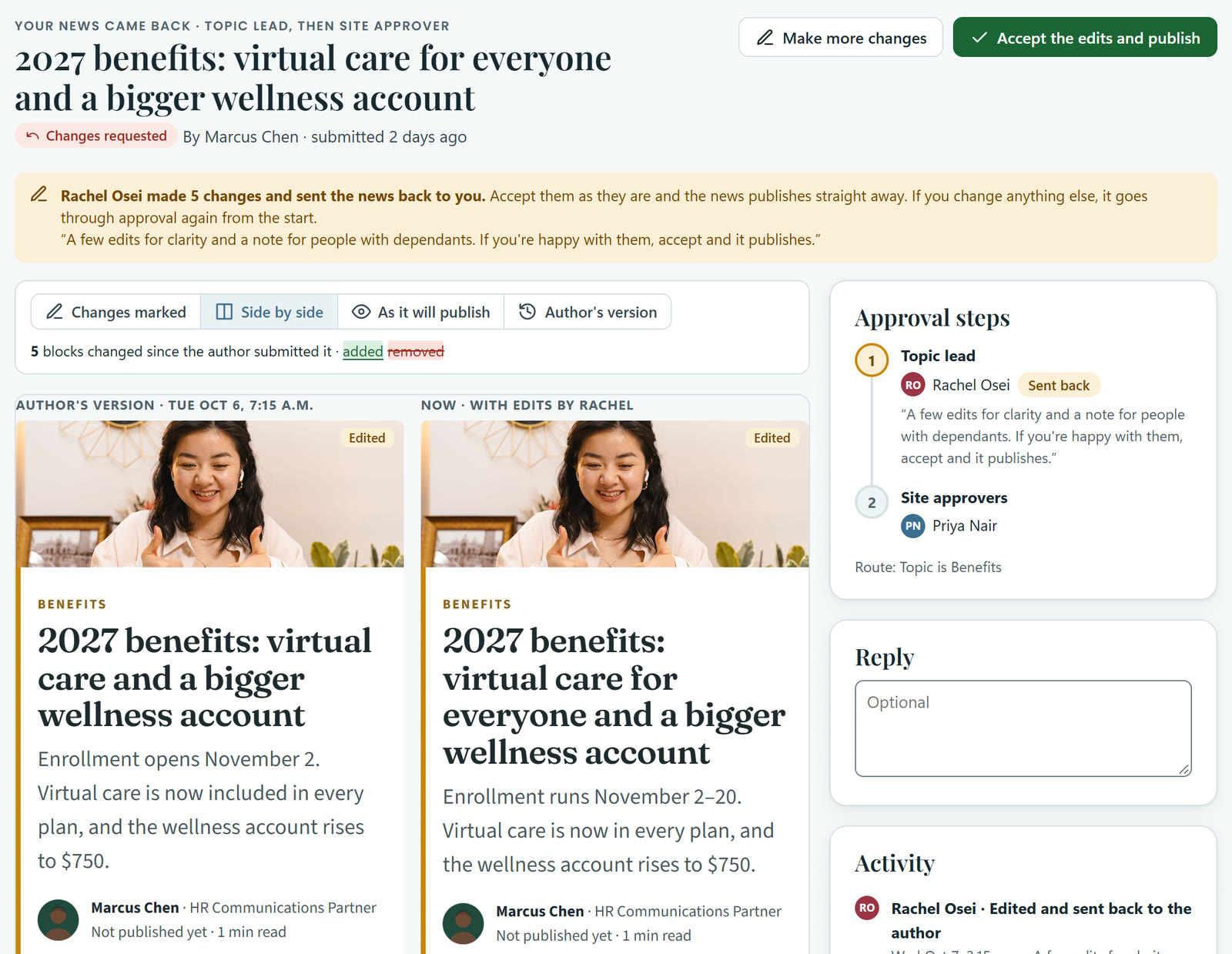
From the Chronicle demo, with sample data and stock photos.
Examples
What it looks like in a working week
Set in Alderbrook Group, an illustrative mass-timber manufacturer of about 2,500 people in six locations. Names, stories and figures come from the Chronicle demo’s sample data.
Five edits instead of five emails
Marcus Chen, HR communications partner in Toronto, submits the 2027 benefits story. Rachel Osei, the Benefits topic lead, spots that the enrollment dates are wrong and that people with dependants need a note.
Without Chronicle
Today she’d reply to his email with a list of changes, he’d make them, and send it back again for one more look.
With Chronicle
The story reaches Rachel under Approvals because a rule sends Benefits news to the topic lead, then a site approver. She selects Edit the draft, corrects the dates and adds the note, then sends it back with her edits and a comment. Marcus sees all five changes marked against what he submitted, selects Accept the edits and publish, and it goes live without another round.
The approver fixes what she found in the draft itself, the author sees exactly what changed, and the story goes out in one round.
A manager approval that needs no list
Leo Fontaine writes about the Houston distribution centre’s second cross-dock, filed under Supply Chain. No other rule matches, so Alderbrook’s default rule sends it to the author’s manager.
Without Chronicle
Today Leo would work out who should see it, email them, and hope the right person replied before the story went stale.
With Chronicle
Chronicle finds Leo’s manager, Tomás Rivera, in Entra ID and shows him as the approver before Leo submits. Tomás approves it under Approvals. He can’t edit pages on the news site, so the story waits as approved and Leo publishes it. Its History card records each step.
Nobody keeps a list of who approves what: the route comes from your rules and Entra ID.
A safety story from the floor
Kwame Mensah, the plant safety coordinator, writes two or three stories a year. The Red Deer mill has just reached 500 days without a lost-time injury.
Without Chronicle
He’d write it in a document, send it to communications, and wait while someone rebuilt it as a page and found the right person to approve it.
With Chronicle
Kwame starts from the Standard story template and picks the Safety topic. Sample text is marked until he replaces it, and the checklist reminds him his photo needs a description. Before he submits, the designer shows the route a rule picked for Safety news: Tomás Rivera as topic lead, then a site approver.
Someone who writes a few stories a year produces one that looks like the rest, approved by the right people.
A department lead who reads it as readers will
Leo’s story about the Edmonton plant switching to biomass heat goes to Tomás Rivera, the Operations department lead, because a rule routes Operations news to its department lead.
Without Chronicle
Today Tomás would get a document attachment, read it out of context, and approve something that looks different once it’s on the intranet. Later, nobody could say which version he saw.
With Chronicle
Tomás opens it from Approvals and switches to As it will publish to read it exactly as readers will. He checks the figures in the summary, adds a comment the author will see, and selects Approve. His decision and its time go into the story’s history and the audit log, and the story moves to the next step or publishes.
Approvers read the story as it will appear, not as an attachment, and the record shows who approved it and when.
See what your authors would see
Book a walkthrough with an author or an approver or two, and we’ll show writing, approving and publishing with templates and routes like yours.