
How it works
Write, approve, publish and archive, in one place
Authors write news from templates and see who will approve it before they send it. Approvers can edit the draft, with every change marked. Published stories are SharePoint news pages in one news centre, and old news archives and retires on your rules. Here is what Chronicle does at each step.
Write
Write from a template, not a blank page
New news starts with a headline, a main topic and a template. The designer opens with the template’s blocks in place, and Chronicle saves as the author works. Desktop and phone previews show both layouts.
- Twelve templates, from a quick update or announcement to a leader message, photo story or spotlight
- Eighteen block types, including text, pull quotes, callouts, key numbers, what to do, questions and answers, galleries, video and profiles
- Documents and events from SharePoint, and contacts from your directory
- Sample text from the template stays marked until the author replaces it
- A Before you publish checklist covers the headline, summary, topics, template text left and a description of every image for people using screen readers
- Change the template at any time: Chronicle shows how the content moves across, block by block
- Save a layout as a template for everyone, a department or yourself
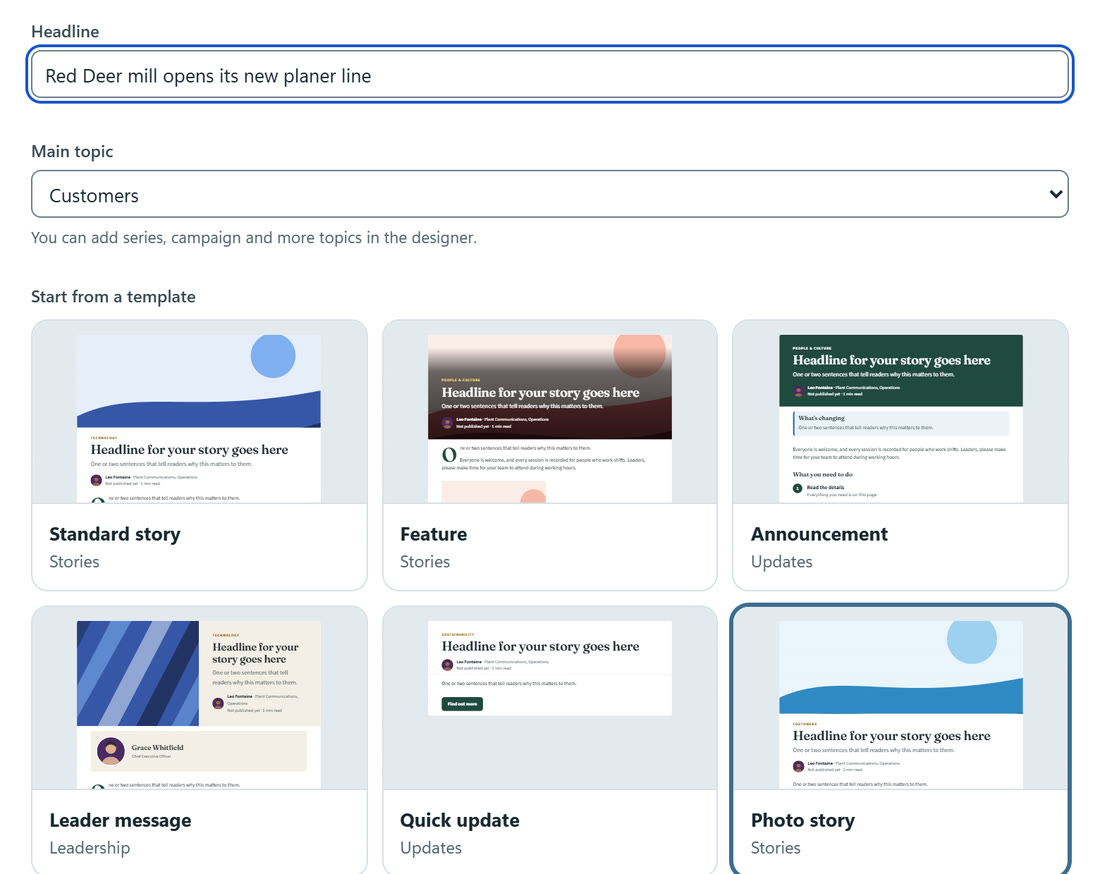
From the Chronicle demo, with sample data.
Approve
The right approvers, with every edit marked
Routing rules pick a workflow for each story from its template, department, topic, series or campaign. Approvers find what’s waiting for them under Approvals, and can review the story four ways before they decide.
- Seven workflows ship ready to use, from no approval to topic lead then site approver; duplicate one or build your own in the workflow builder
- Steps go to site approvers, the author’s manager from Entra ID, a department or topic lead, a series or campaign owner, or a named person
- Approvers can edit the draft. Every change is tracked word by word against what the author submitted: added words in green, removed words struck through
- Approve, ask for changes or reject. Rejecting needs a comment, and so does sending back without edits
- If the author accepts the edits unchanged, the story can publish at once
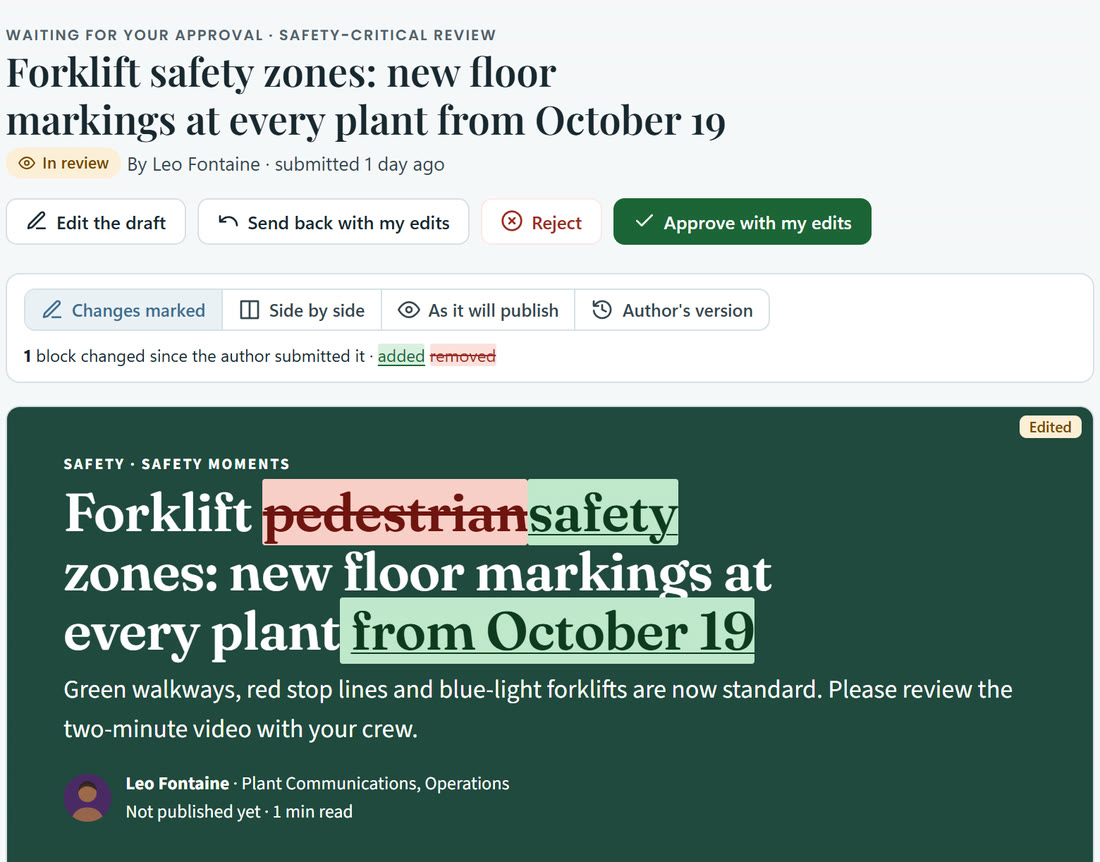
From the Chronicle demo, with sample data.
Publish
Every approved story becomes a real SharePoint news page
When the last approver approves, Chronicle creates a modern page in Site Pages, promotes it as news and adds it to the news centre. It shows in SharePoint news and search like any other page.
- Publish now, or choose a date and time
- Scheduled news goes live within the hour after its time, once the Publish and lifecycle flow is set up
- Approvers who can’t edit pages on the site leave the story approved, ready for the author or an owner to publish
- Owners and auditors see each story’s history: who submitted, approved and published it, and when
- The news brand sets how stories look: a built-in brand, your SharePoint site’s theme, or your own colours, headline font and corners. Chronicle checks brand colours against WCAG AA contrast and darkens them when it has to.
- SharePoint’s page bar is hidden from readers; people who edit pages can show it
- Twelve news web parts show it on any other SharePoint site, each linking back to the news centre

From the Chronicle demo, with sample data and stock photos.
Read
One news centre for the whole organization
The news centre opens with the stories your owners chose to feature, then the latest news. Readers narrow it by topic, search every word, browse the archive and save stories for later.
- Seven featured layouts: hero and headlines, slider, cards, newsletter, mosaic, spotlight and ticker
- Search covers the headline, summary and every word, with filters for topic, series, campaign, department and date
- Tick Include archived news to search the archive too, or browse it by month; archived stories keep their pages
- Most read this month, each series, current campaigns and the stories each person saved for later, beside the news
- Like and Useful reactions; Chronicle’s screens show only the totals

From the Chronicle demo, with sample data and stock photos.
Feature
News owners decide what everyone sees first
Owners do everything authors and approvers do, for every story on the site, and look after what readers see: what’s featured, which campaigns run, and which stories need attention.
- Feature a story at the top of the news centre, with an optional end date
- Archive, restore or retire any story from its Placement card, which shows its dates and the rule that set them
- Campaigns group news for a goal and a period, with an owner, co-owners, contributors, dates and topics
- Private campaigns are seen only by their own people and Chronicle’s administrators, once a site owner saves them or the nightly flow runs, and their names never show on the stories tagged with them
- Series, such as Leadership notes or Plant Spotlight, keep regular features together, each with its own owner
- The administration overview lists what needs attention: approvals past their due date, approved news waiting to publish, and news archiving or being deleted soon
- If you also use Herald, iomer’s newsletter accelerator, owners and authors can suggest a published story to a newsletter’s owners
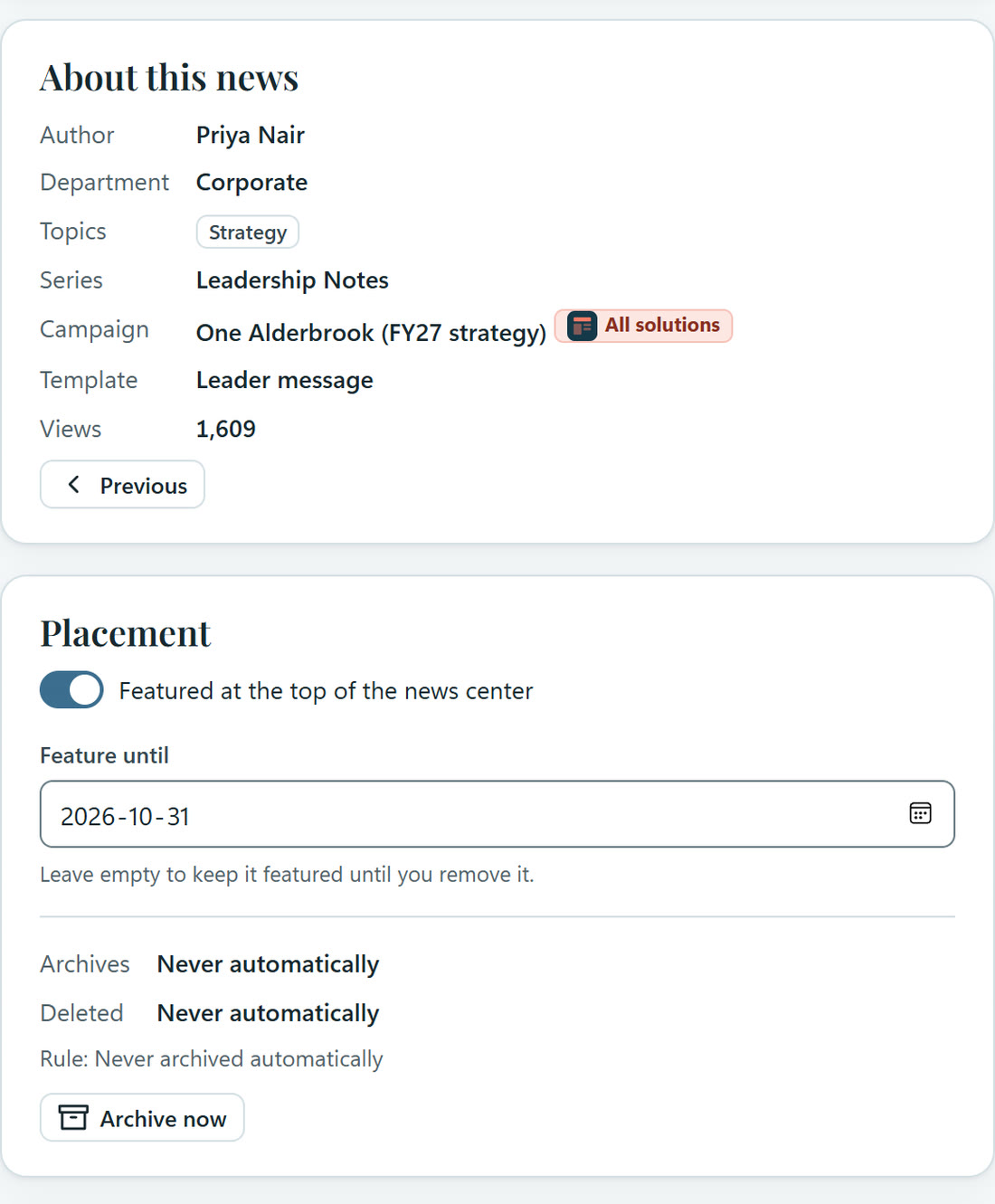
From the Chronicle demo, with sample data.
Run
Administrators run it from one place
Site owners, and anyone given the Administrator role, manage Chronicle under Administration. Owners can change taxonomy, archive rules, templates and design, and auditors can read everything. Every change goes into the audit log.
- Six roles, each tied to its own SharePoint group
- Topics, departments and series, with the leads and owners that approval steps reach by name
- Workflows and routing rules, with a tester for each
- Setup checks for groups, role holders, a person’s access, permissions and undelivered messages, with a health check and Repair
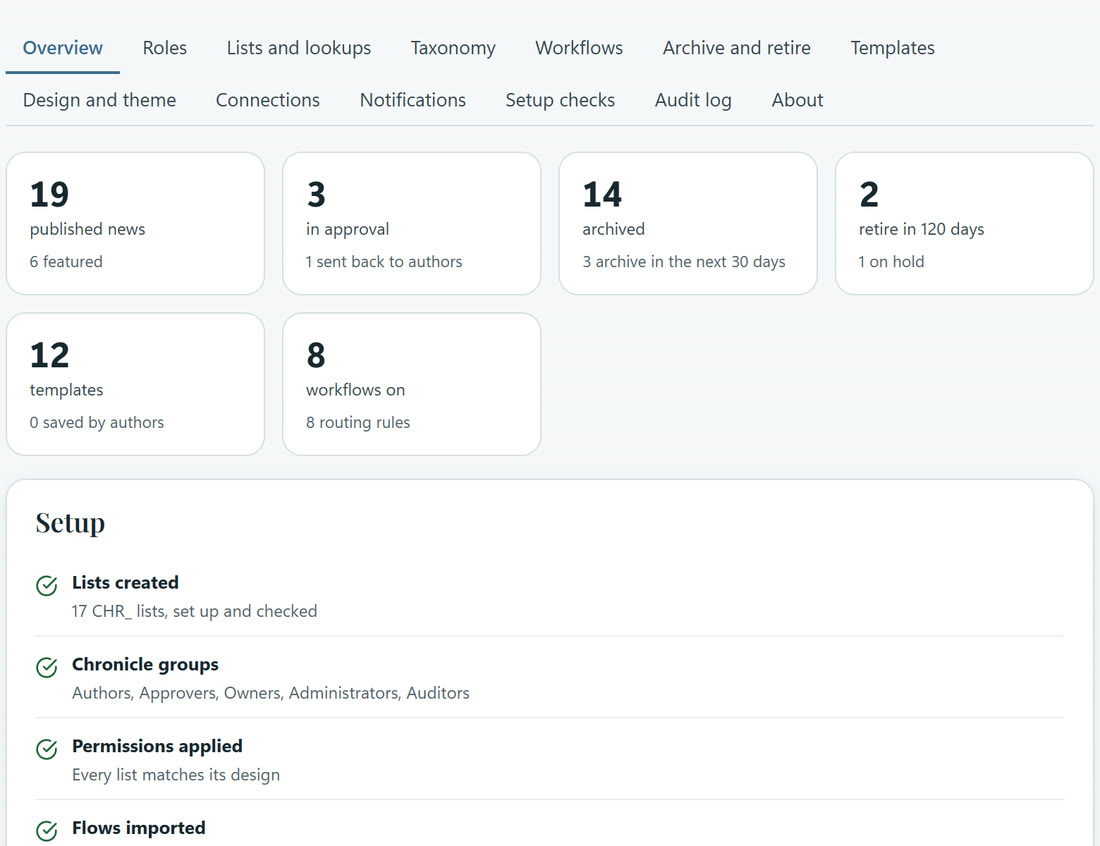
From the Chronicle demo, with sample data.
Records
Archive, retire and an audit log
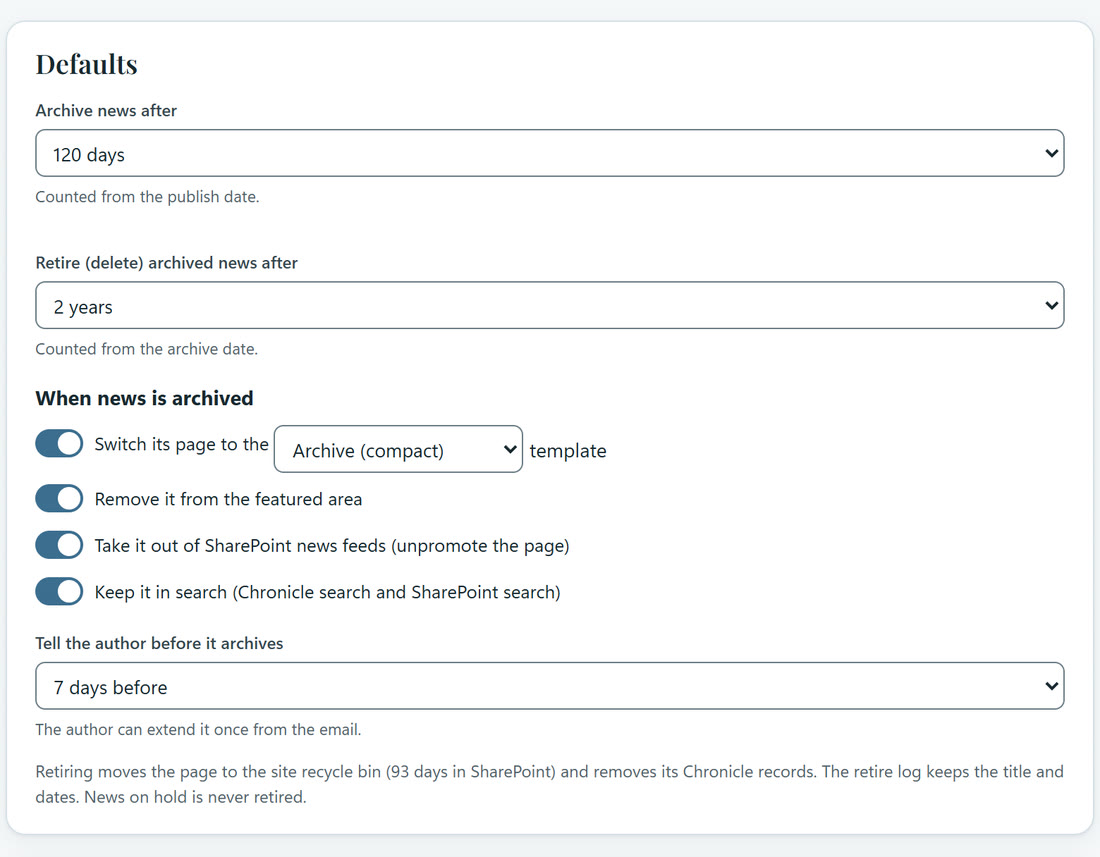
Every published story gets an archive date and, once archived, a delete date. Defaults apply unless a lifecycle rule matches, so quick updates can archive sooner than features. The retire log and the audit log keep a record of what went and when.
- Defaults: archive 120 days after publishing and delete 730 days after archiving, with rules by topic, series, template or campaign
- On archive, a story can switch to the compact Archive template, leaves the featured area and SharePoint news feeds, and stays searchable if you allow it
- Retiring sends the page to the site recycle bin, where SharePoint keeps it 93 days; the retire log keeps its title and dates
- Put a story on hold to keep it from being deleted until you release it
- The audit log records every change, with who made it and when. Export it as CSV; Chronicle never edits or deletes entries
From the Chronicle demo, with sample data.
Notify
Everything shows in Chronicle, and email when you want it
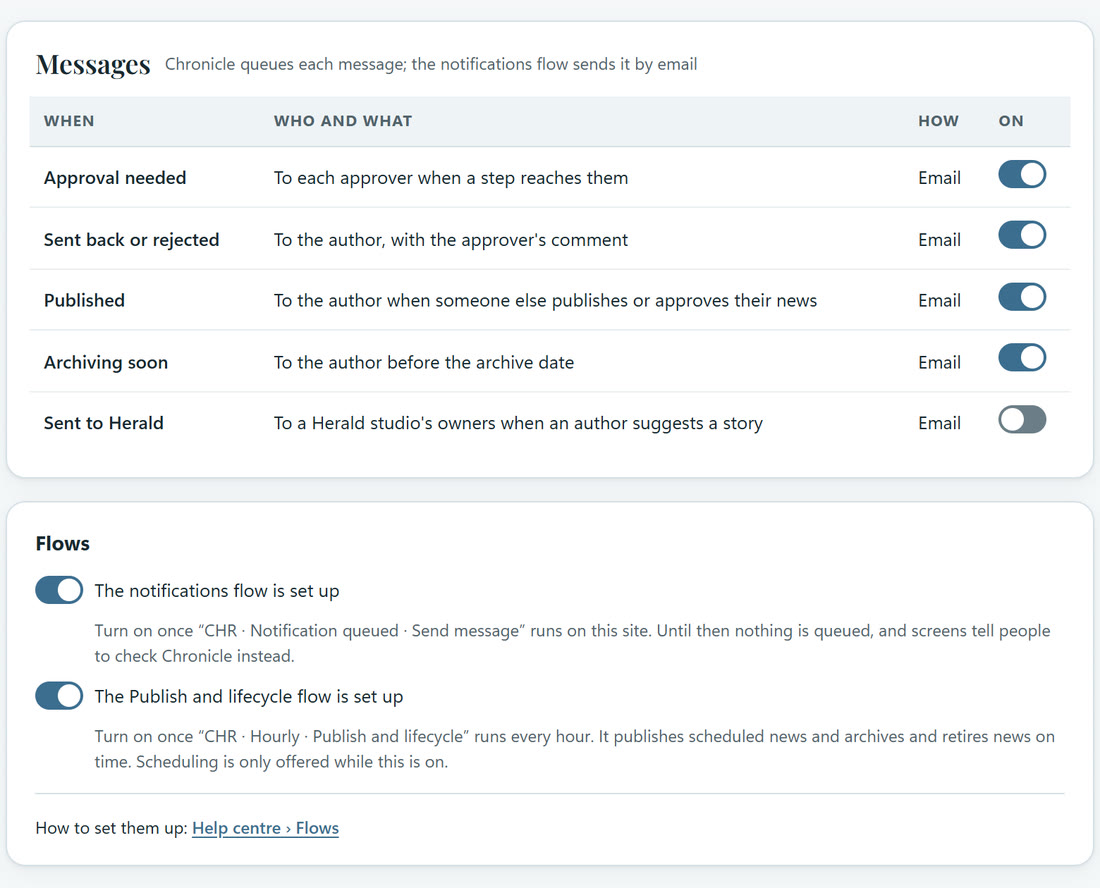
Approvers always find waiting news under Approvals, and authors see theirs under My news. Two optional Power Automate flows, running as your own service account, add email, scheduled publishing and archiving on the date.
- Send message emails approvers and authors at each step of approval
- Messages go only to the email domains you choose, and only while the story still exists
- Publish and lifecycle runs every hour: scheduled publishing, and archiving and retiring each night
- Each flow and each message type switches off in Chronicle, without opening Power Automate
- Without the flows, news publishes when it’s approved and owners archive by hand; Chronicle’s screens say so
From the Chronicle demo, with sample data.
Accessibility
Designed to WCAG 2.2 AA
- Full keyboard use with visible focus, the designer’s toolbar included
- Reflow down to 320 pixels wide; wide tables scroll in their own box
- The checklist asks for a description of every image before a story goes for approval
- Takes your news brand; a brand colour too light for readable text is darkened automatically
A solution accelerator
Built for your organization, installed by iomer
Everything on this page is already built on SharePoint, Microsoft Entra ID and Power Automate. iomer sets up your organization’s Chronicle as a single deployment package, with your news brand, templates, topics, approval routes and archive rules, and installs it in your tenant.
See Chronicle with news like yours
Book a 30-minute walkthrough set up with templates and approval routes like yours, or take the evaluation kit away and come back when you’re ready.