Herald Watch the 55-second tour Book a walkthrough
Book a walkthrough Tour

How it works

Build, preview, send and measure, in one place

Authors build each issue from a template and the content already on your intranet, and see it as every reader will. It goes out as a page, an email, a PDF and a Teams post to the audiences you choose. Readers confirm what matters, and owners see how far it reached. Here is what Herald does at each step.

Write

Start from a template, not a blank page

To start an issue, the author picks a series, a campaign if the issue belongs to one, and a template. A series brings its audience, channels, template and theme with it. The editor opens with the template’s blocks in place, and Herald saves as the author types.

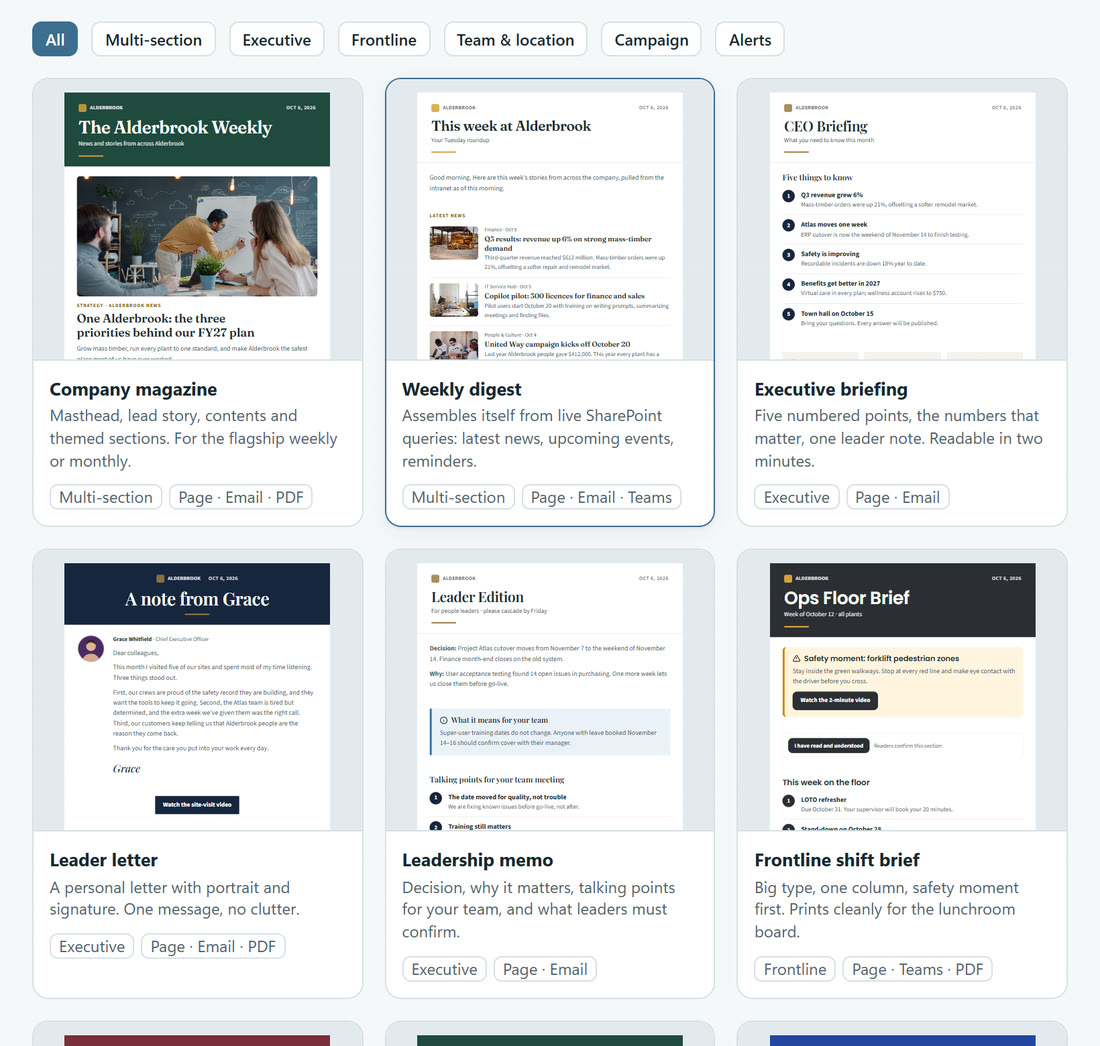
  • Fourteen templates: company magazine, weekly digest, executive briefing, leader letter, leadership memo, frontline shift brief, department bulletin, location news, change update, policy notice, critical notice, event recap, recognition and quarterly results
  • Nineteen kinds of block: stories, leader messages, callouts, key points and key numbers, video, buttons, events, documents, people and the masthead, contents, headers and footer
  • A template’s sample text stays marked in the checklist, and the issue can’t be sent until it’s gone
  • Intranet, Email and Phone show the layout at each size as the author works
  • If someone else saved the issue since it was opened, Herald says so and reloads it rather than overwrite their work
  • Save as template keeps a layout for the author, or for every author
Herald demo: the Templates gallery, with filters for multi-section, executive, frontline, team and location, campaign and alert templates, and a live preview of each template, starting with the company magazine.

From the Herald demo, with sample data and stock photos.

Content

Pull in what’s already published

The SharePoint tab searches the news posts, events and documents each author can open, and the people in your directory. Authors add an item with a click or drag it onto the page; its title, summary and picture come from SharePoint.

  • News posts come from SharePoint search: your hub’s sites, this site, or every site people can open, as your administrators choose
  • Upcoming events from the events lists you register, and documents from the libraries you choose
  • A story block can follow a live query, such as the three most recent news posts. It refreshes until the issue is scheduled or sent, then freezes, so the sent issue never changes
  • Authors only ever see items they can open themselves
  • Readers must confirm they’ve read this puts an I have read and understood button under a section of the issue page, and a confirm link in the email, the PDF and Teams
  • To show a block to only some readers, such as people leaders, pick them under Show to; nobody else sees it on the issue page. Everyone who gets the email sees all of it, so Leave out of keeps a block out of the email or the PDF. Neither is a security setting: put anything confidential in a separate, secured issue
  • The Design tab sets the subject line, preview text, theme, topics and campaign. The subject follows the issue’s title until the author writes their own
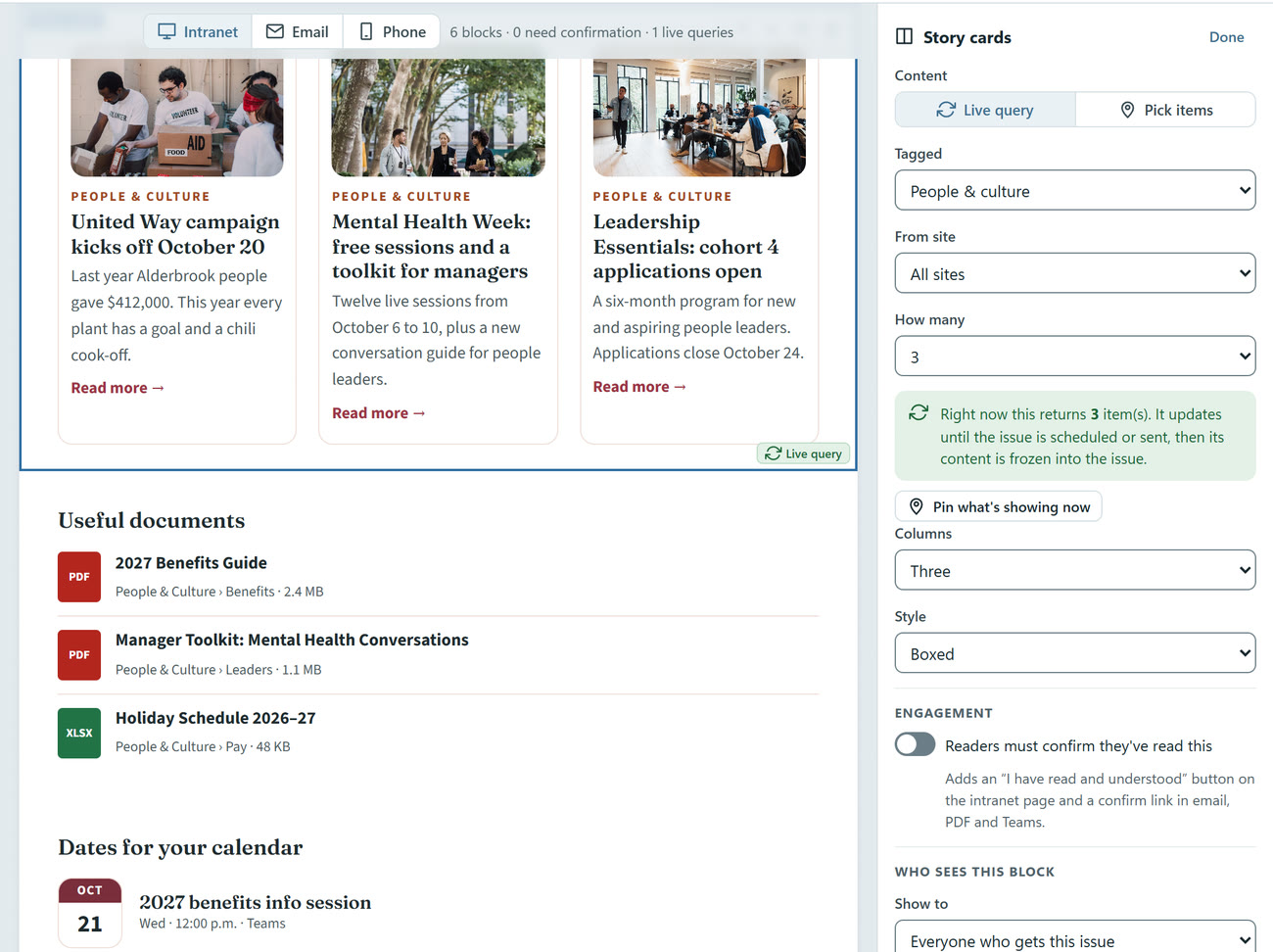
Herald demo: a story block selected in the editor, with its properties showing a live query for the most recent news posts and a note that it updates until the issue is scheduled or sent.

From the Herald demo, with sample data and stock photos.
Preview

See it as every reader will

Before sending, authors preview the issue in each place it will appear, so they catch problems before anyone else sees them.

  • The intranet page, as readers will open it
  • The email as Outlook will get it, on a desktop and on a phone
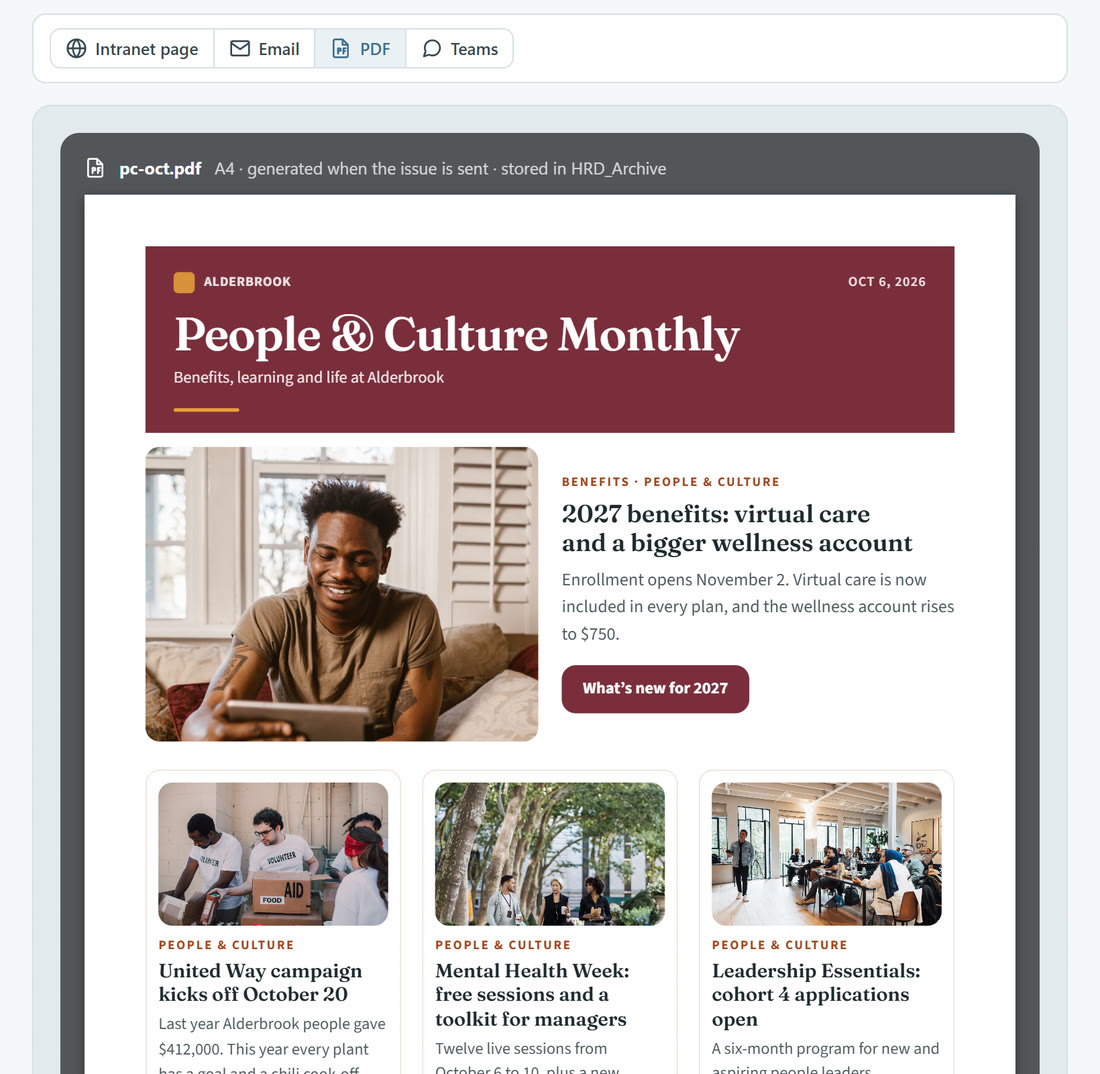
  • The PDF, paged for printing
  • The Teams card, with buttons to read the issue and confirm
  • View as shows what someone in each targeted group sees
  • The issue checklist covers the subject line, preview text, image descriptions, topics, email size, live queries and sections to confirm
Herald demo: the preview, with buttons for the intranet page, the email, the PDF and Teams. PDF is selected, showing People & Culture Monthly laid out as printed pages.

From the Herald demo, with sample data and stock photos.
Send

Send to the right people

Send or schedule takes the author through four steps: Audience, Channels, Timing, and Check and send.

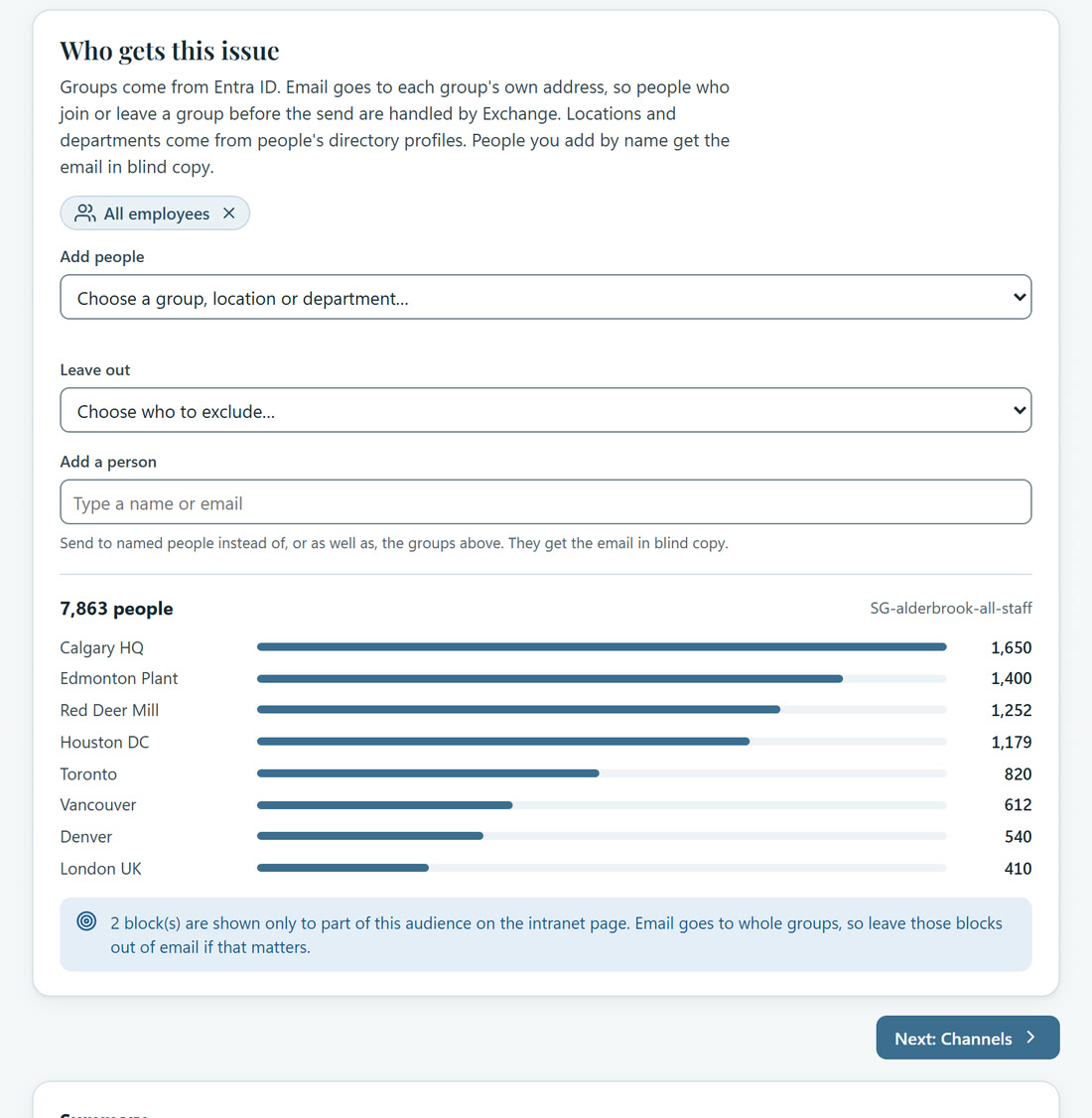
  • Audiences from Entra groups, offices and departments, with anyone to leave out. Add a person sends to named people instead of, or as well as, those groups
  • Herald counts the people and shows where they are, before anything goes
  • Each Entra group with an email address gets the issue at that address. Named people, offices and departments get it in blind copy, and nobody gets it twice
  • Only this audience can open the page and its PDF is on unless the audience is everyone
  • The email can carry the whole newsletter, a teaser with a link, or a short note with the PDF attached. Teams posts a card to the channels you choose
  • Send now, or schedule between 10 minutes and 30 days ahead. Scheduling freezes the issue; Unschedule to edit changes it, and nothing is sent
  • Send me a test, then Send now or Schedule. At the chosen time, the send flow publishes the issue page, emails it from your shared mailbox, makes the PDF and posts to Teams, even if nobody has Herald open
Herald demo: step 1 of Send or schedule, Audience, for an issue to All employees. Herald counts 7,863 people and shows how many work at each location, from Calgary HQ and the Edmonton plant to the Red Deer mill and the Houston distribution centre, with a summary of the page, channels and email beside it.

From the Herald demo, with sample data.

Approve

Approval when a series needs it

A series can need approval from a named approver, such as the chief executive for a CEO briefing. The author selects Send for approval in the editor, and the issue waits under Approvals until the approver decides.

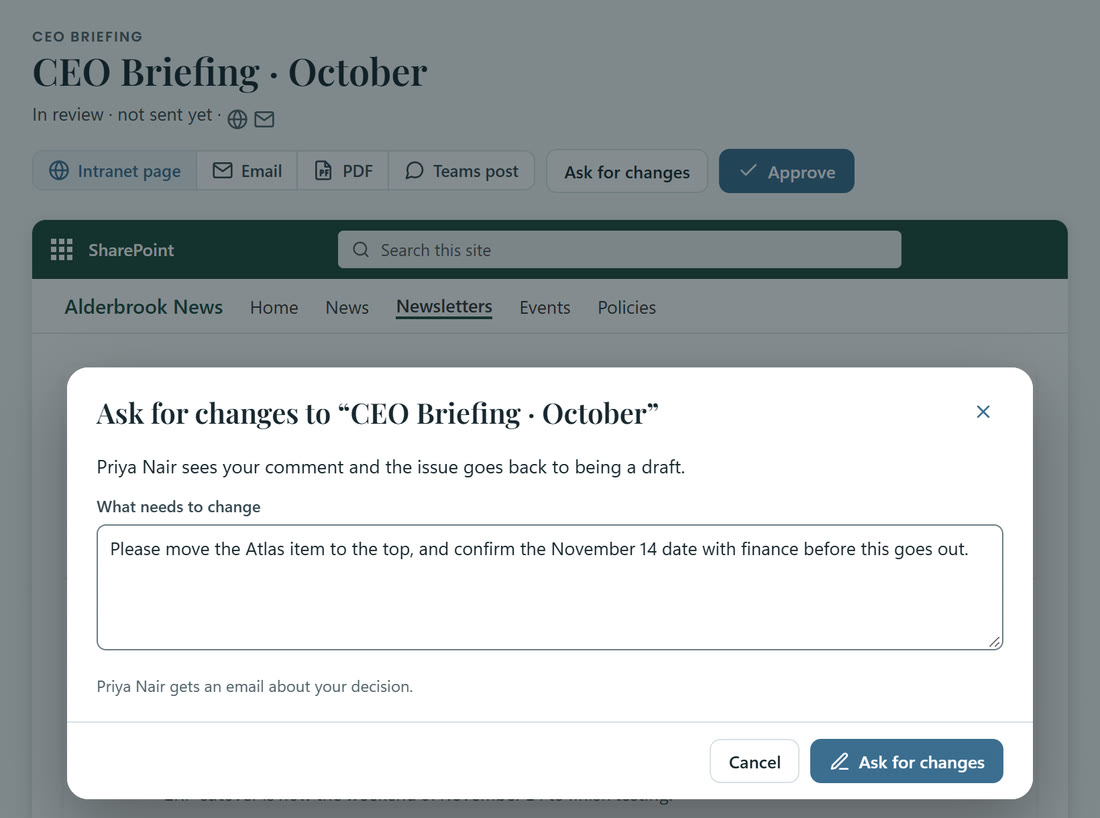
  • The approver selects Read to see the issue as readers will, then Approve or Ask for changes
  • Asking for changes needs a comment. The author sees Changes requested, with the comment, in the editor
  • Approval covers the version the approver read. If the author edits it afterwards, it’s a draft again and needs a new approval
  • The issue can’t be sent until it’s approved
  • Authors see their requests and the decisions under Approvals
  • With the messages flow set up, the approver gets an email when an issue is waiting, and the author gets one with the decision
Herald demo: Grace Whitfield, the chief executive, reading CEO Briefing · October, which is in review, with Ask for changes and Approve at the top. The Ask for changes dialog is open: Priya Nair sees the comment and the issue goes back to being a draft. The comment reads: Please move the Atlas item to the top, and confirm the November 14 date with finance before this goes out.

From the Herald demo, with sample data.

Read

Read anywhere, confirm what matters

An issue looks the same wherever it’s opened: in the email, from a Teams post or on the intranet. Newsletters shows each person every issue sent to them, newest first, with an archive they can search by title or topic.

  • Links in the email and Teams open the issue page first, so Herald can count the click, then take the reader to the story
  • A section that asks for it has an I have read and understood button. The confirmation is saved with the date and time, and can’t be undone
  • Confirm links in the email go straight to the section
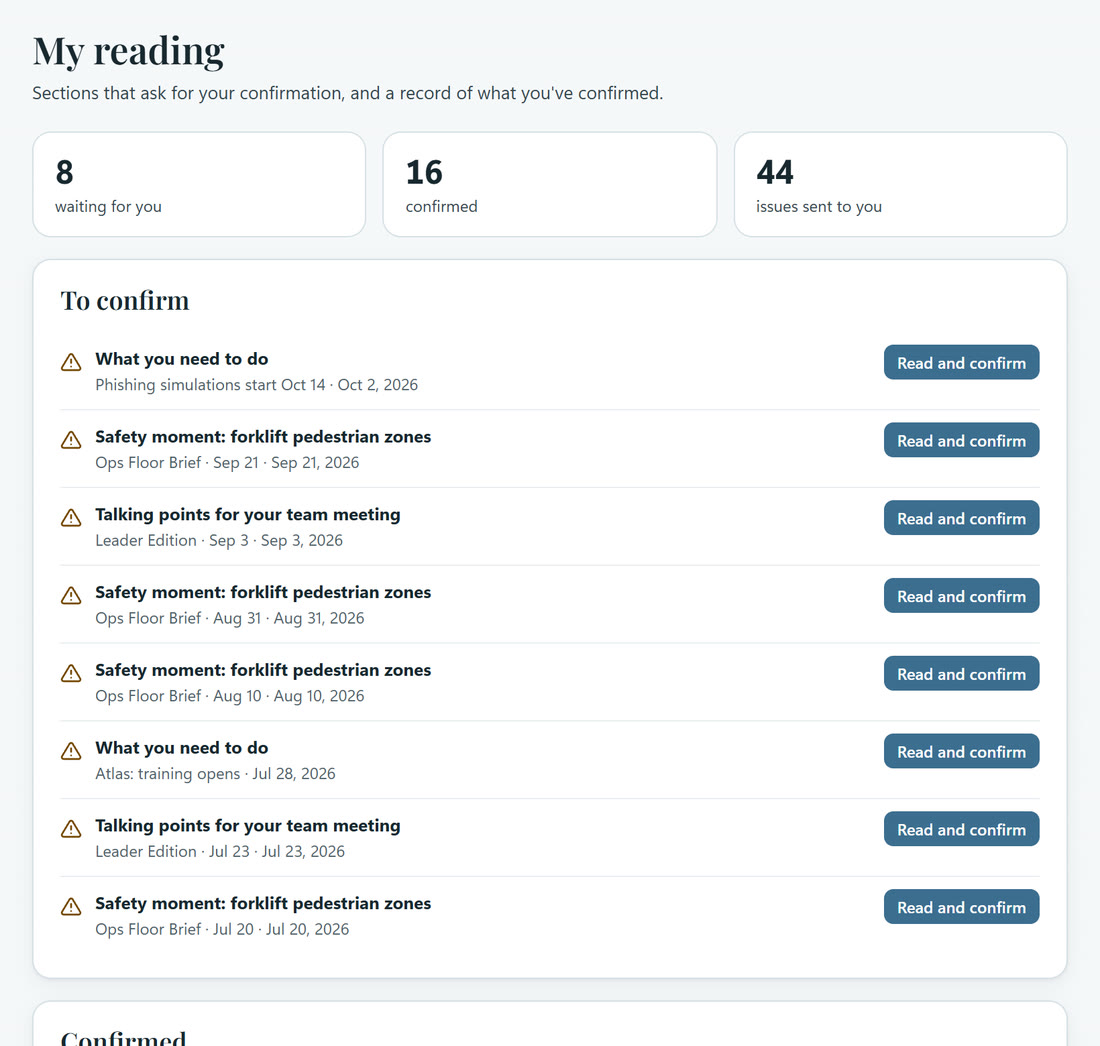
  • Needs your confirmation and My reading list what’s still waiting, and what each person has confirmed
  • Series that reach you shows how each series is sent to them. Series go to whole groups, offices and departments, so there’s no unsubscribe
  • At the end of each issue, readers can tell the authors whether it was useful
Herald demo: My reading as Sofia Alvarez, a maintenance technician at the Red Deer mill: how many sections are waiting for Sofia to confirm, how many are confirmed and how many issues were sent, then the sections to confirm, each with Read and confirm.

From the Herald demo, with sample data.

Results

See how far each issue reached

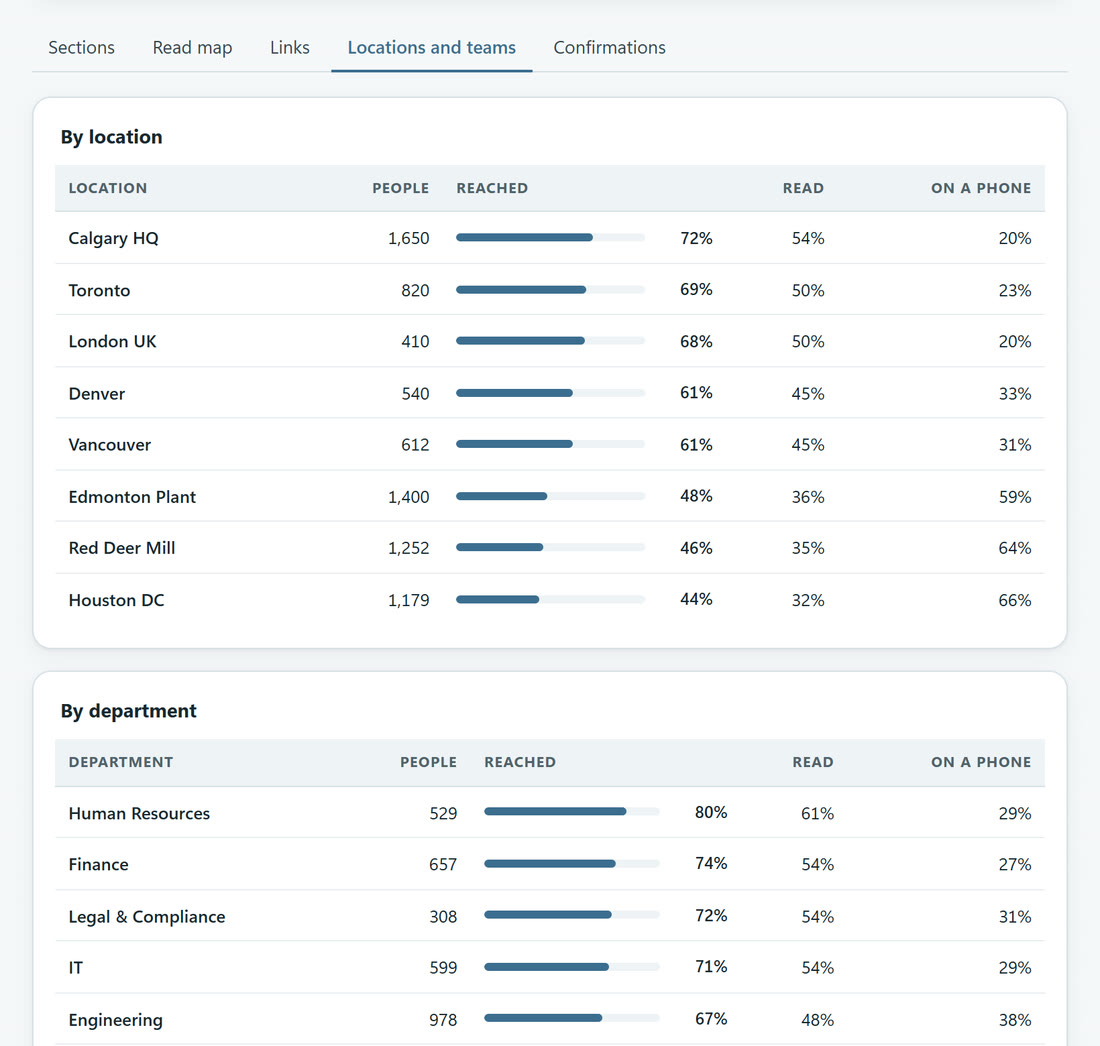
Every sent issue has Results: delivered, reached, read, clicked and confirmed, the first 72 hours, and tabs for sections, a read map, links, locations and teams, and confirmations.

  • Reached counts people who opened the issue page, from an email link, Teams or the intranet. Read means half of a section stayed on screen for four seconds
  • Analytics compares every sent issue by series, campaign, topic, author, location and department, with trends by week, how people got there and when they read. Export downloads the view as CSV
  • Remind people who haven’t confirmed emails everyone in the audience still missing a confirmation, in blind copy from your shared mailbox
  • Export confirmation register lists everyone who confirmed, with the section, the time and the channel
  • Results are worked out when a Herald owner or administrator opens Analytics, and the page says when they were last worked out
  • Reading inside the email itself isn’t counted: Herald uses no tracking pixel
Herald demo: the results of a sent issue, on the Locations and teams tab, with reach and reading for each location and team.

From the Herald demo, with sample data.

Run

Administrators run it from one place

Site owners, and anyone given the administrator role, manage Herald under Administration. Auditors can open every tab and change nothing. Every change made in Herald goes into the audit log.

  • Five roles beyond reading, each tied to its own SharePoint group: author (optionally limited to some series), owner, approver, auditor and administrator
  • Delivery: the shared mailbox and the name people see, the Teams channels, the PDF and the issue page template
  • Content sources: where news comes from, and which events lists and document libraries authors can use
  • Theme and branding: your newsletter brand, with contrast checks before it reaches an issue
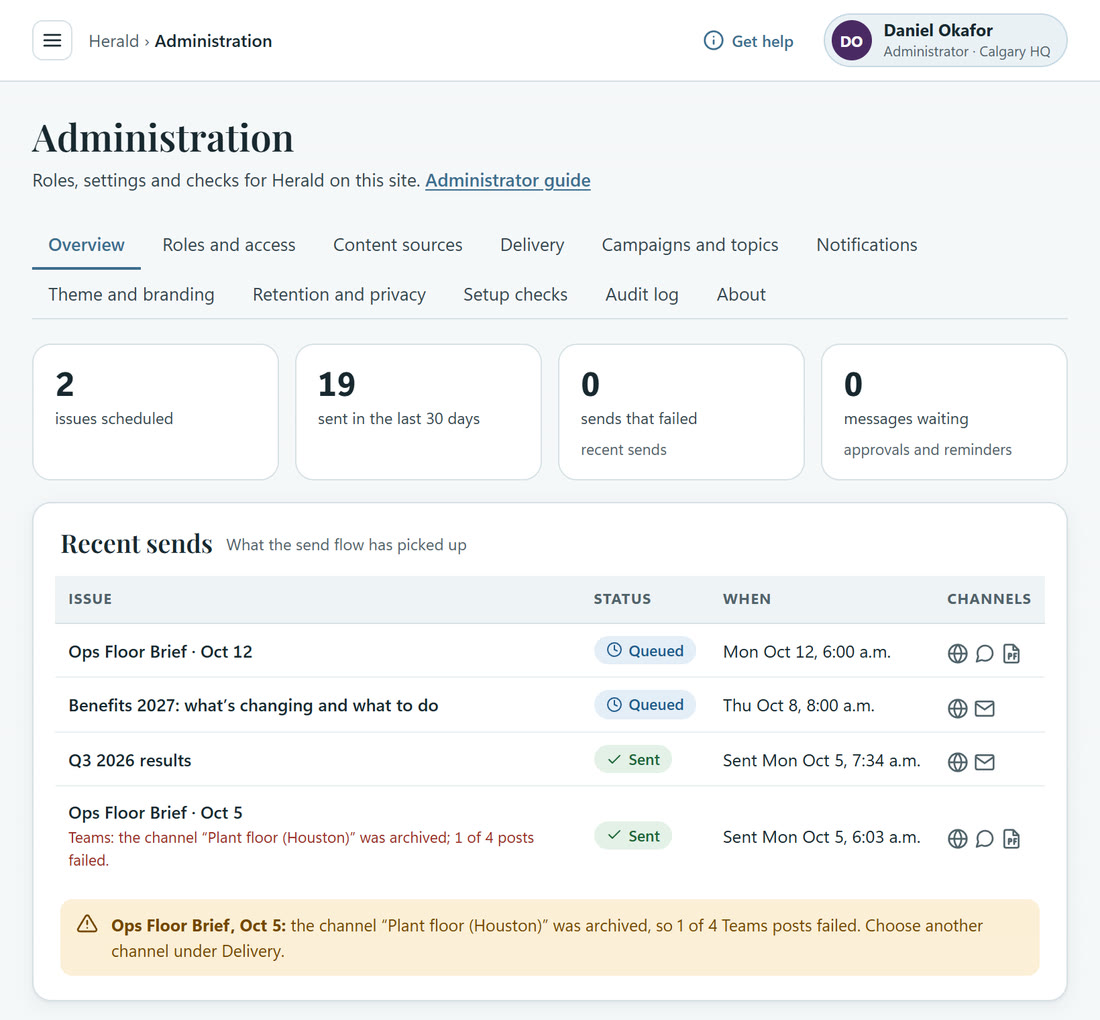
  • Overview: issues scheduled and sent, sends that failed and messages waiting, with each send’s status and any error
  • Setup checks for Herald’s groups, role holders, a person’s access, lists and permissions, with Apply permissions and a Setup health check that repairs what’s missing
  • A Help centre with every guide, searchable, built in
Herald demo: Administration › Overview as Daniel Okafor: issues scheduled, issues sent in the last 30 days, sends that failed and messages waiting, then the recent sends the send flow has picked up, with their status, time and channels.

From the Herald demo, with sample data.

Records

Privacy, retention and an audit log

Herald records reading so it can work out results, and its screens only ever show totals. Your administrators set how small a group can be shown and how long reading records are kept.

  • When someone opens an issue page, Herald saves which sections they read, which links they followed, the channel they came from and their confirmations, in their name
  • Locations and departments with fewer than five people, or the number you set from 3 to 50, are merged before results are saved
  • The clean-up flow deletes reading records after the retention period (90 days unless you change it, from 30 to 730), once that issue’s results exist
  • Confirmations, results, sent issues and the audit log are kept. Apply a Microsoft Purview retention label if your records policy needs one
  • Herald owners, administrators and auditors can read the reading records in SharePoint, because Herald needs them to work out results. The confirmation register is the one export with names, because confirmations are a record
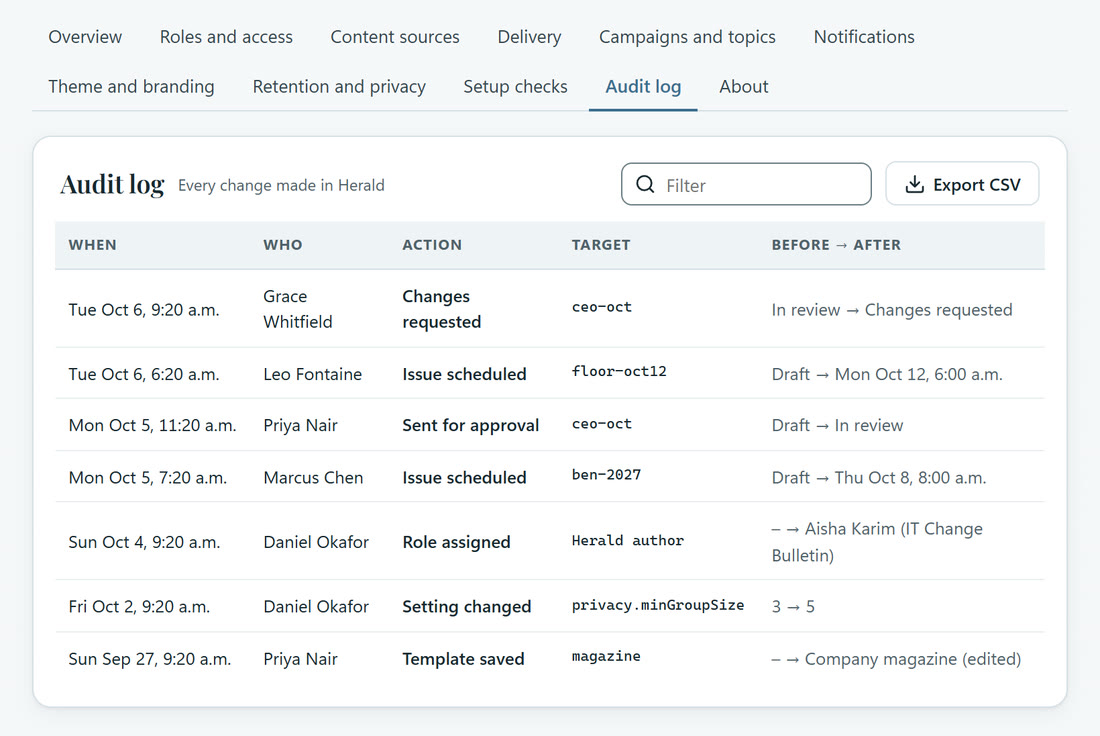
  • The audit log records every change made in Herald: who, what, and the values before and after. Filter it, and export it as CSV
Herald demo: Administration › Audit log, every change made in Herald, with Filter and Export CSV. Each row gives when, who, the action, its target, and the value before and after: Grace Whitfield’s changes requested on the CEO Briefing, issues scheduled by Leo Fontaine and Marcus Chen, Priya Nair’s request for approval, a role assigned, the smallest group shown in results changed from 3 to 5, and a template saved.

From the Herald demo, with sample data.

Accessibility

Designed to WCAG 2.2 AA

  • Keyboard and screen reader support with visible focus; blocks can be added and moved without dragging
  • Reflow down to 320 pixels wide; tables become labelled cards on narrow screens
  • The checklist covers image descriptions, and your newsletter brand’s colours are checked for 4.5:1 contrast before they reach an issue
  • Checked with axe-core at five widths, from 1360 down to 320 pixels: 174 screens and dialogs with no violations, in iomer’s own automated tests

A solution accelerator

Built for your organization, installed by iomer

Everything on this page is already built on SharePoint, Microsoft Entra ID, Microsoft Graph and Power Automate. iomer builds your organization’s Herald deployment, installs it in your tenant and sets it up with your newsletter brand, templates, series, audiences and approvers.

How Herald reaches your tenant

See Herald with newsletters like yours

Book a 30-minute walkthrough set up with templates and audiences like yours, or take the evaluation kit away and come back when you’re ready.